
Can You Export Your Webflow Site? What You Get and What Breaks

Miloš
The short version.
Or ask your AI
Yes, you can export your Webflow site's HTML, CSS, JavaScript, and assets with a paid Workspace plan. But the export doesn't include a functioning CMS, form processing, or other Webflow-dependent features. A static export may be enough for a simple site; if you're leaving because of platform limitations, a proper migration is usually the more useful option.
In this article
- What Webflow's code export actually gives you
- What stays behind when you export a Webflow site?
- Can you export your Webflow CMS?
- What happens to your CMS images?
- What happens to your SEO after exporting?
- Three ways forward: Stay, export, or migrate?
- 1. Stay on Webflow
- 2. Export and self-host your website
- 3. Migrate to a new website stack
- Before you cancel your Webflow plan
- Is exporting Webflow the right move for you?
Exporting a website sounds like it should be simple. Download the files, upload them to a new host, and you're done.
But a five-page marketing site and a website with hundreds of CMS pages are very different things to move. What you can take depends on the features your site relies on.
Before you export anything, it's worth understanding what you're actually getting, what stays behind, and whether exporting the code is even the right move for your website.
What Webflow's code export actually gives you
As of October 2026, you can download your site's front-end code as a ZIP file with a paid Workspace plan. A paid Site plan alone doesn't include code export.
To download it, open your site in Webflow and select Main menu > Code export, or press Shift + E. Then select Prepare ZIP and download the file.
Inside the ZIP, you'll find:
- HTML files for your pages, including empty CMS Collection templates.
- CSS files containing your site's styling and Webflow's base styles.
- JavaScript files used by navigation menus, sliders, tabs, and interactions.
- Images and assets uploaded through Webflow's Assets panel.
You can host the exported code elsewhere without a Webflow subscription or attribution. But the ZIP doesn't replace the services running behind your site.
For the full technical details, see Webflow's code export documentation.
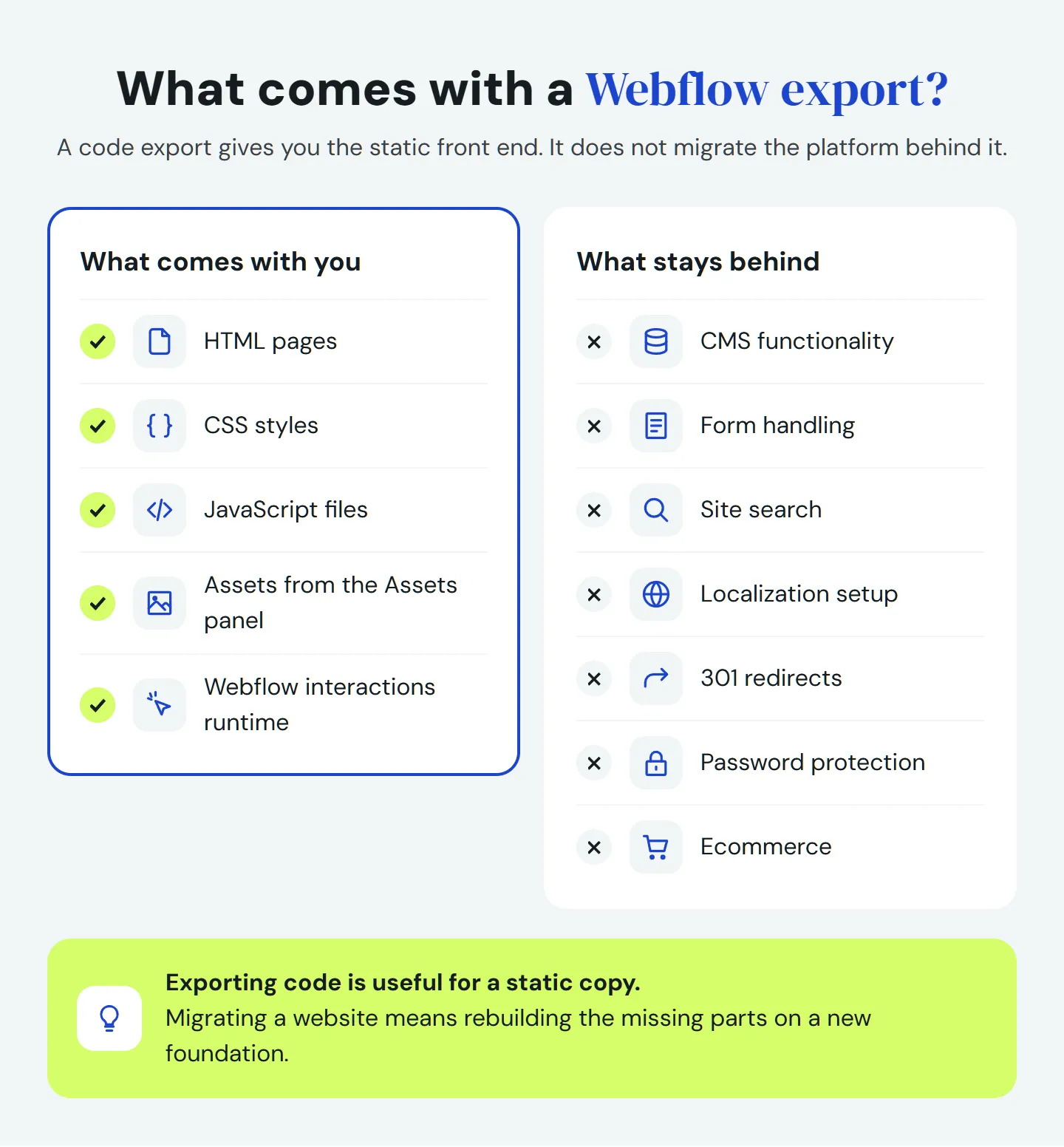
What stays behind when you export a Webflow site?
Webflow's code export leaves behind the dynamic content and services that depend on its platform.
| Feature | What happens after export | What you'll need instead |
|---|---|---|
| CMS content | Collection lists are empty, and dynamic pages don't display their CMS data. | Export content separately and connect it to a new CMS or static content system. |
| Forms | Forms may still appear, but Webflow won't process submissions. File uploads and reCAPTCHA won't work as before. | A third-party form service or another form-processing setup. |
| Site search | Webflow's built-in search stops working. | A separate search solution. |
| Localization | Only the primary language is included in the code export. | A setup for your other languages and translated content. |
| Password protection | Previously protected pages are no longer protected. | Access controls on the new platform or host. |
| Ecommerce | Products, checkout, and other Webflow ecommerce functionality don't transfer as a working system. | A separate ecommerce solution. |
| Code components | Webflow code components don't transfer as functioning components. | Reimplement the components you need. |
| 301 redirects | Redirect rules configured in Webflow don't travel with the exported files. | Recreate them on the new host. |
Webflow interactions are an exception. Their JavaScript is included, so animations can continue working on another host, though they still need testing.
For an Astro rebuild, we'd typically recreate the interactions worth keeping instead of carrying over Webflow's runtime.
Can you export your Webflow CMS?
Yes, you can export your Webflow CMS content, but not the CMS itself or its functioning dynamic pages.
Export each Collection as a CSV from Webflow's CMS panel. You'll get fields such as titles, slugs, descriptions, and rich text as HTML. Relationships between Collections may need to be recreated on the new platform.
If you use localization, export each relevant locale separately. Webflow's CSV export includes content from the locale you're currently viewing.
What happens to your CMS images?
This is easy to overlook during a migration.
Images and files stored in CMS fields aren't downloaded with the CSV. Instead, Webflow exports URLs pointing to files hosted by the original project. The same applies to images embedded in rich text.
The URLs can keep working while the original project exists, but deleting that project can break them. Cancelling hosting doesn't necessarily break them immediately.
Even if the links work today, depending on a platform you're leaving to serve your site's images creates an unnecessary risk.
A safer approach is to download your CMS images and files, move them to your new storage or hosting, and update their references.
You'll still need to import the content and connect it to new page templates. The CSV contains your data, not a working CMS.
What happens to your SEO after exporting?
Exporting Webflow doesn't automatically erase your rankings, but preserving them requires more than uploading a ZIP file.
Some SEO elements remain in the exported HTML; others need to be rebuilt or checked.
- Content and metadata. Static pages retain their exported HTML and existing metadata. CMS-driven pages and the SEO fields tied to their content don't come over as working pages, so you'll need to recreate them.
- URLs and redirects. Exported pages are
.htmlfiles. Whether your public URLs change depends on your new hosting setup. If they do change, you'll need appropriate redirects. Existing Webflow redirects won't transfer automatically. - Sitemap and indexing. Check that your new site has a valid sitemap, suitable robots.txt rules, and correct canonical URLs. Important pages must remain accessible to search engines.
- Internal links. Check links between pages, especially if your URL structure changes.
You can export Webflow's existing 301 redirects as a CSV under Site settings > Publishing > 301 redirects, then configure them on the new host. Redirects should be ready when the new site goes live.
A migration is also a chance to fix long-standing SEO problems, such as weak site structure, technical errors, or slow pages. That can improve performance, but results aren't guaranteed by changing platforms alone.
After launch, check your key pages and redirects, submit the new sitemap if needed, and monitor Google Search Console for indexing issues or unexpected changes in traffic.
Three ways forward: Stay, export, or migrate?
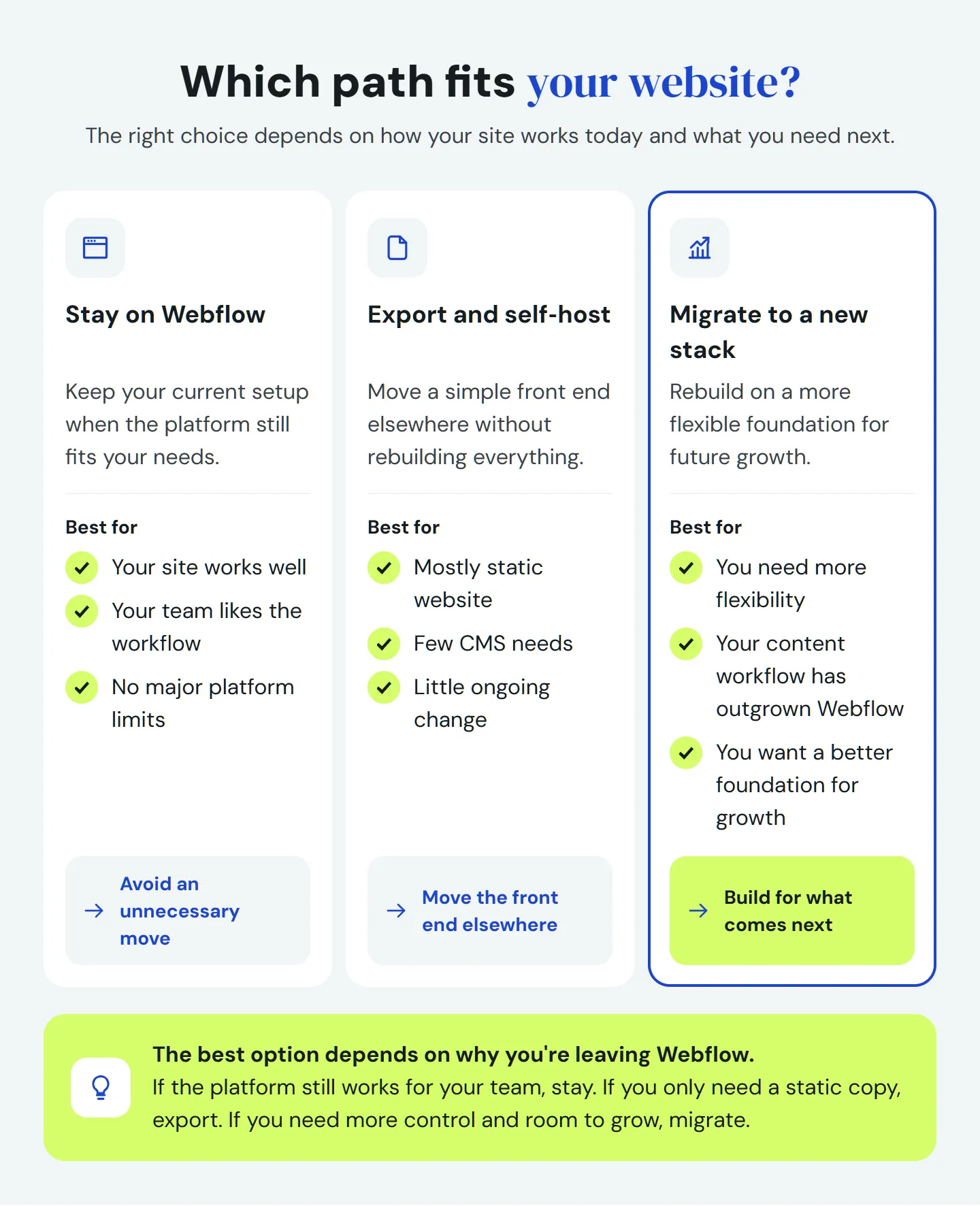
The right choice depends on how your website works today and what's making you consider leaving Webflow. You have three practical options.
1. Stay on Webflow
If your website works well, your team is comfortable managing its content, and the platform isn't holding you back, staying may be the best decision.
You keep your editing workflow and avoid the cost and disruption of a move. Newer technology alone isn't a reason to switch.
2. Export and self-host your website
For a small, mostly static website, a code export can be a practical way to move off Webflow hosting.
You download the files, deploy them elsewhere, and replace any platform-dependent features you still need. It works best when the site rarely changes and has little CMS or form functionality.
The tradeoff: without Webflow's visual editor, changes generally require code, and you're responsible for hosting and replacement services.
Some third-party export tools can capture rendered CMS pages as static HTML, but that still gives you a snapshot, not an editable CMS.
3. Migrate to a new website stack
If you're considering leaving because Webflow's limitations are getting in your way, a static export may only move those problems elsewhere. A proper migration gives you the chance to solve them.
You can preserve the design you like while rebuilding the front end in a stack such as Astro. Content moves to a CMS chosen for your team, while forms, integrations, media, and SEO can be set up around your actual needs.
The real benefit is flexibility. You can create new page types without working around a visual builder, organize content for reuse across the site, reduce unnecessary dependencies, and make ongoing improvements easier to manage. A well-structured codebase also gives your team more control over future changes, including AI-assisted editing workflows.
A rebuild takes more effort upfront. The front end and interactions need to be implemented again, and content, assets, and redirects need careful handling. But the result can be a cleaner, faster, more maintainable website that supports what you want to do next, rather than simply recreating what you had.
Astro isn't the only destination. If you're considering it, our Webflow to Astro migration guide explains the process.
Before you cancel your Webflow plan
Don't cancel your Webflow hosting or remove the original project until you've secured what you need and verified that the replacement works.
- Export your website code if you need it. For self-hosting, save the HTML, CSS, JavaScript, and assets. A full rebuild may not need the exported code as its foundation.
- Export your CMS content. Save each Collection as CSV, including each language your site uses.
- Download your images and files. Save assets from the Assets panel and CMS fields, including images embedded in rich text.
- Save redirects and SEO information. Export existing 301 redirects and record important URLs, metadata, and SEO settings.
- Back up form submissions. Export submissions separately and download any uploaded files you need to keep.
- Document integrations and custom code. Record analytics, third-party scripts, custom embeds, and services you'll need to reconnect.
- Account for protected and localized content. Make sure every required language and access restriction is handled in the replacement site.
- Test before switching off Webflow. Check pages, images, forms, internal links, redirects, and SEO settings after the new site is live.
Keep the original project as a backup until the replacement is verified and your assets are safely stored elsewhere.
Is exporting Webflow the right move for you?
A code export can be enough for a simple site. But when you're leaving because you need greater control, more flexible content management, or room to grow, a full migration is often the better investment.
The goal is a website that fits your team and what comes next, not leaving Webflow for its own sake.
Not sure what moving your Webflow site would involve? Try our free Migration Scanner. It analyzes your public website to identify the platform and help you understand the scope of a potential move. You can also explore Genten's website migration services.

Written by Miloš
Design Engineer & Growth Strategy, Genten Studio